AI skin analysis, native to your WooCommerce store.
Add a face scan to your storefront. Oyster reads the skin, builds a routine from your own catalogue, fills the cart, and ties every order back to the scan that produced it.
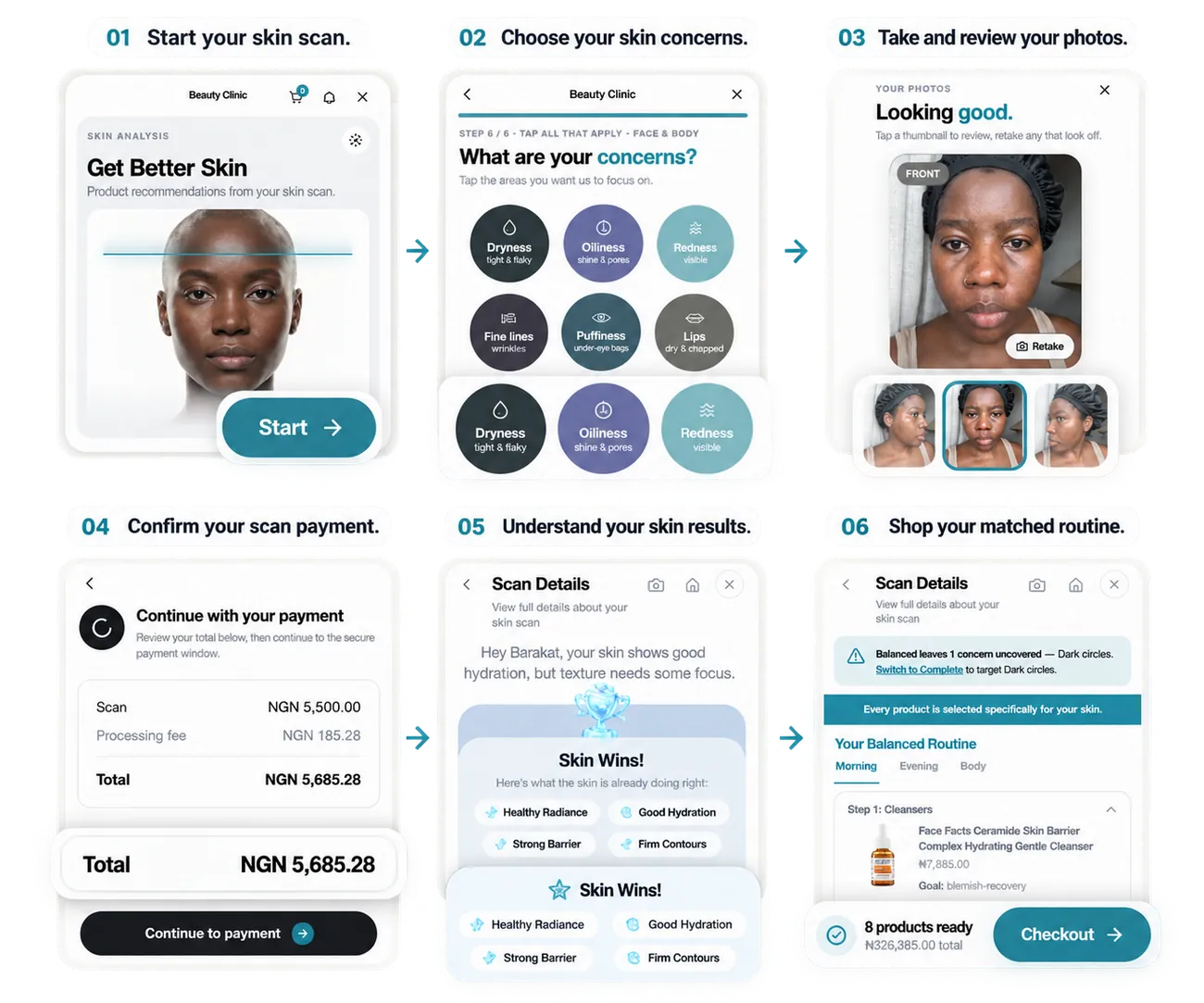
From a scan to an order on your store.
Oyster handles the skin analysis and product matching. Customers use your existing WooCommerce cart and checkout.
Open
A shopper starts the scan from the launcher, an inline block or the scan page.
Scan
Oyster analyses the face and builds a routine from products that synced from your catalogue.
Cart
The server checks the recommended products and adds them to the shopper’s WooCommerce cart.
Checkout
They check out on your store, with your own payment methods and emails.
Return
Oyster emails their report. Its shop links come back and refill the cart days later.
Attribute
Paid orders are recorded in Oyster without changing fulfilment.
Set up your storefront in an afternoon.
Upload the ready-to-install plugin zip. You do not need Composer, npm or a server build.
Install and activate
Upload the plugin under Plugins > Add New, activate, and an Oyster item appears just below WooCommerce.
Connect your store
Sign in with your Oyster vendor account and confirm with the one time code we email. The store gets its own encrypted credential.
Choose what syncs
Nothing syncs until you pick a scope: all products, or only the categories and tags you select. Then run the first import.
Place the scan
Turn on the floating launcher, or drop the [oyster_scan] block or shortcode anywhere you want it.
Recommendations built from your own products.
Oyster never recommends what you do not stock. Simple and variable products sync in the background through Action Scheduler, so saving a product never waits on the network.
What syncs
Imported automatically for each product you select.
Three fields you fill in
Add these product details to improve matching. You can import all three from a CSV.
- IngredientsList one ingredient per line so Oyster can use it when matching products.
- Skin TypeNormal, Dry, Oily, Combination, Sensitive, Acne prone or Mature.
- Size / volumeEnter the amount and unit shown on the product.
See which scan led to each order.
At checkout the plugin stamps a scan batch id, a routine id and a widget attribution id onto the order. When it is paid, that order is reported to Oyster and shows up in your dashboard beside the scan it came from.
Reporting is guarded against double submission and never touches order processing, customer emails or fulfilment. Your sale stays entirely yours.
On the order
The scan details saved with an order.
- Scan batchThe exact analysis that produced the routine.
- Routine idThe set of products recommended to the shopper.
- AttributionRecorded once when the order is paid.
WooCommerce skin analysis, answered.
Does Oyster work with my WooCommerce theme?+
Where do the product recommendations come from?+
Does it change my checkout or payment methods?+
How long does it take to set up?+
Is customer skin data kept private?+
Add skin analysis to your WooCommerce product pages.
Book a walkthrough on your own store, or read the merchant guide and connect it yourself.